WalletConnect Integration
What is WalletConnect?
WalletConnect is an open protocol to connect dApps with wallets. In this CLI, WalletConnect lets you sign and send write transactions from your wallet without exposing a private key to the CLI. The CLI shows a connection URI and QR code; you approve the session in your wallet, and the CLI uses that session to submit transactions.
🔒 Security Best Practice: Use with Multisig
Recommended for Production: For enhanced security, especially when managing significant funds or performing critical operations, we strongly recommend using WalletConnect with a multisig wallet like Gnosis Safe.
Why Multisig?
- Multi-party approval: Requires multiple signers to approve transactions
- No single point of failure: Protects against compromised individual keys
- Audit trail: All transactions are recorded and require explicit approval
- Transaction simulation: Review all transaction details before signing
- Separation of concerns: Different team members can have different roles
Supported Multisig Wallets
- Gnosis Safe / Safe{Wallet} (Recommended) - Most widely used multisig, excellent WalletConnect support
- Other multisig wallets with WalletConnect v2 support
Prerequisites
For All Wallets
- Wallet that supports WalletConnect v2
- WalletConnect Cloud project ID (public, not a secret)
- Configured CLI environment (.env)
For Multisig (Recommended)
- Gnosis Safe with sufficient signers
- Owner access to the Safe
- Sufficient threshold configured (e.g., 2-of-3, 3-of-5)
Environment Configuration
Create or update your .env file:
# Network Configuration (Required)
CHAIN_ID=560048
EL_URL=https://your-rpc-endpoint
DEPLOYED=deployed-hoodi-vaults.json

# WalletConnect Configuration
# WALLET_CONNECT_PROJECT_ID is NOT a secret - it's a public app identifier
WALLET_CONNECT_PROJECT_ID=ee928c025792b10a6daa97d85328c433
Important Notes:
- ✅ When using WalletConnect, you do not need
PRIVATE_KEYorACCOUNT_FILE - ✅ Your private keys stay in your wallet - the CLI never accesses them
- ⚠️ Ensure your wallet network matches the
CHAIN_IDconfigured in the CLI
How It Works
Connection Flow
-
CLI Initialization
- CLI initializes WalletConnect session using
WALLET_CONNECT_PROJECT_ID - Displays connection URI and QR code in terminal
- CLI initializes WalletConnect session using
-
Wallet Connection
- Mobile wallet: Scan QR code with your wallet app
- Desktop/Multisig: Copy and paste the WalletConnect URI
-
Session Approval
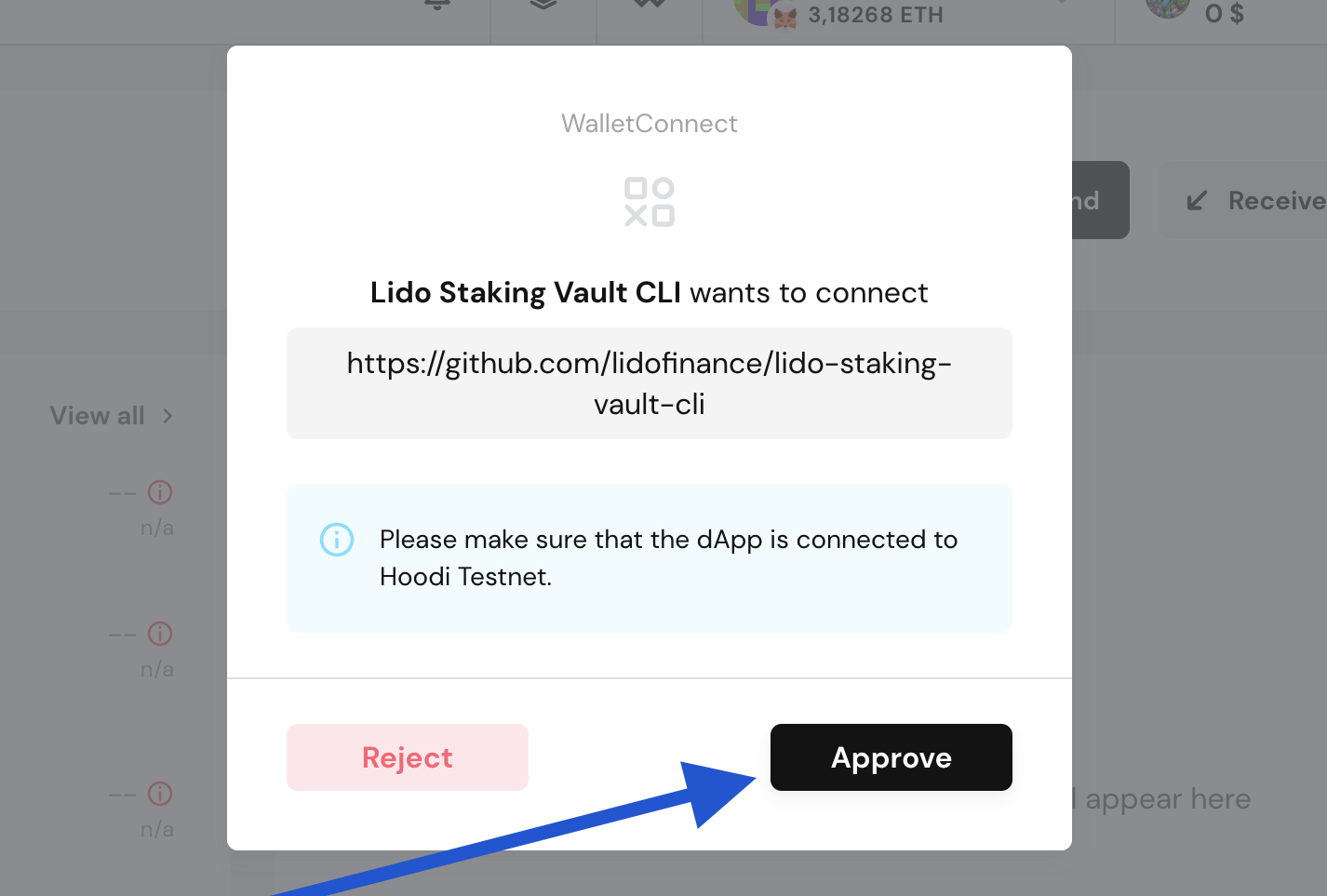
- Approve the connection in your wallet
- CLI confirms connection and shows connected account
-
Transaction Flow
- CLI simulates transaction first (safety check)
- Requests your wallet to execute the transaction
- You review and sign in the wallet
- Single-sig: CLI waits for confirmation and displays transaction hash
- Multisig: CLI submits to Safe and exits; other signers must approve separately
Connection Parameters
- Attempts: Up to 3 connection attempts
- Timeout: 180 seconds per attempt
- Batch Support: Uses EIP-5792
wallet_getCapabilities(with your account address) to detect real batch support per chain. If the wallet reportsatomic.status === 'supported'(oratomicBatch.supported), the CLI useswallet_sendCallsfor batch operations; otherwise it falls back to individualeth_sendTransactioncalls. Some wallets (e.g. MetaMask) declarewallet_sendCallsin the session but require EIP-7702 to be enabled — if not enabled or if the batch call fails (e.g. code 5750), the CLI automatically falls back to sending transactions one by one and logs that fallback
Using WalletConnect with Gnosis Safe (Recommended)
Step-by-Step Guide
1. Prepare Your Gnosis Safe
Before using WalletConnect with the CLI:
- Ensure your Safe is deployed on the correct network (matching
CHAIN_ID) - Verify you have sufficient signers to meet the threshold
- Confirm the Safe has necessary permissions for the operations you'll perform
2. Run CLI Command with WalletConnect Flag
Add --wallet-connect flag to any write (or read) command:
# Example: Create a vault using Gnosis Safe
yarn start vo w create-vault create --wallet-connect

# Example: Fund a vault
yarn start vo w fund 32 --wallet-connect

# Example: Submit a report
yarn start report w submit --wallet-connect
3. Connect Gnosis Safe to CLI
When the CLI displays the QR code and URI:
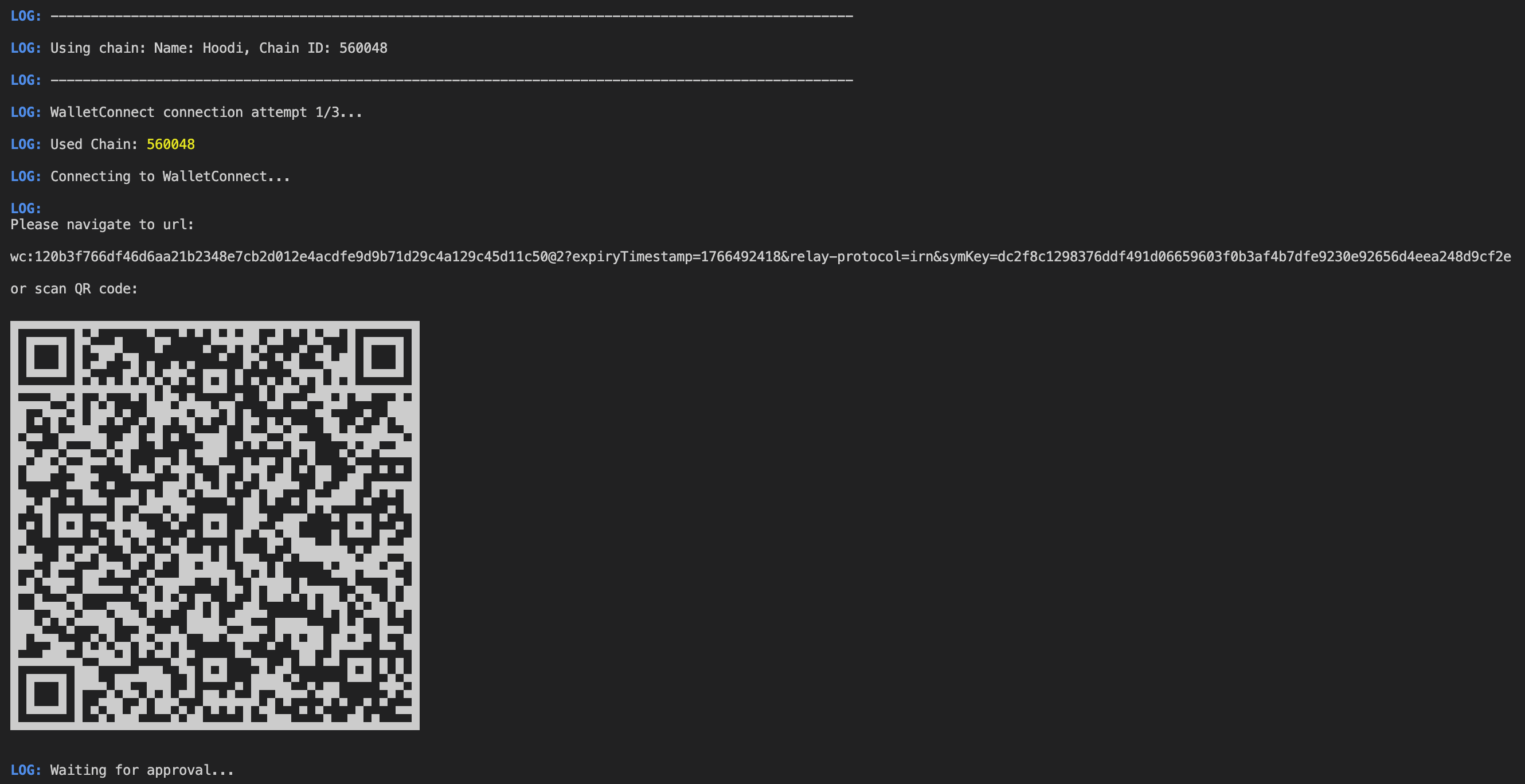
Option A: Using Safe Mobile App
- Open Safe app on your mobile device
- Scan the QR code displayed in the terminal
- Approve the connection request
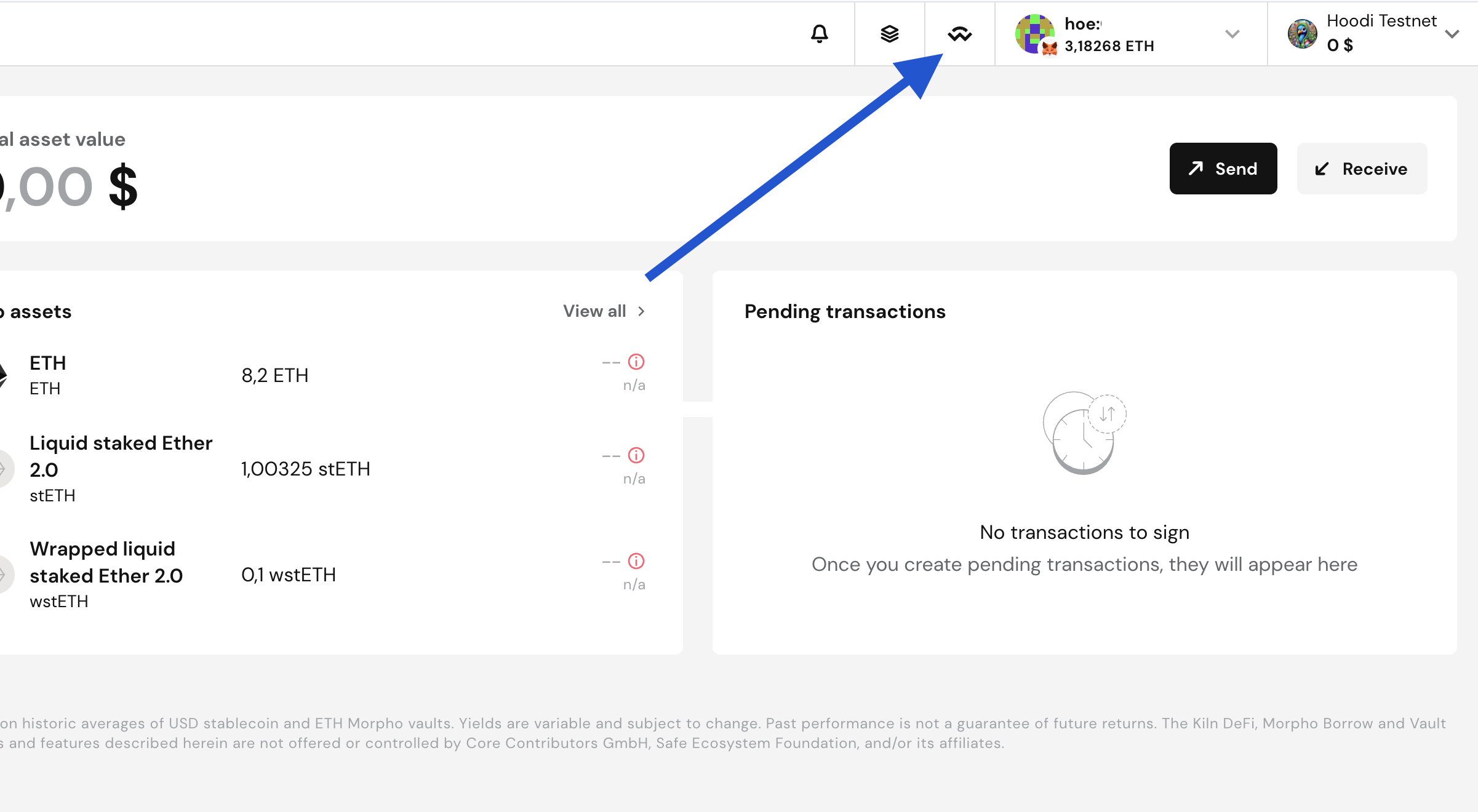
Option B: Using Safe Web Interface
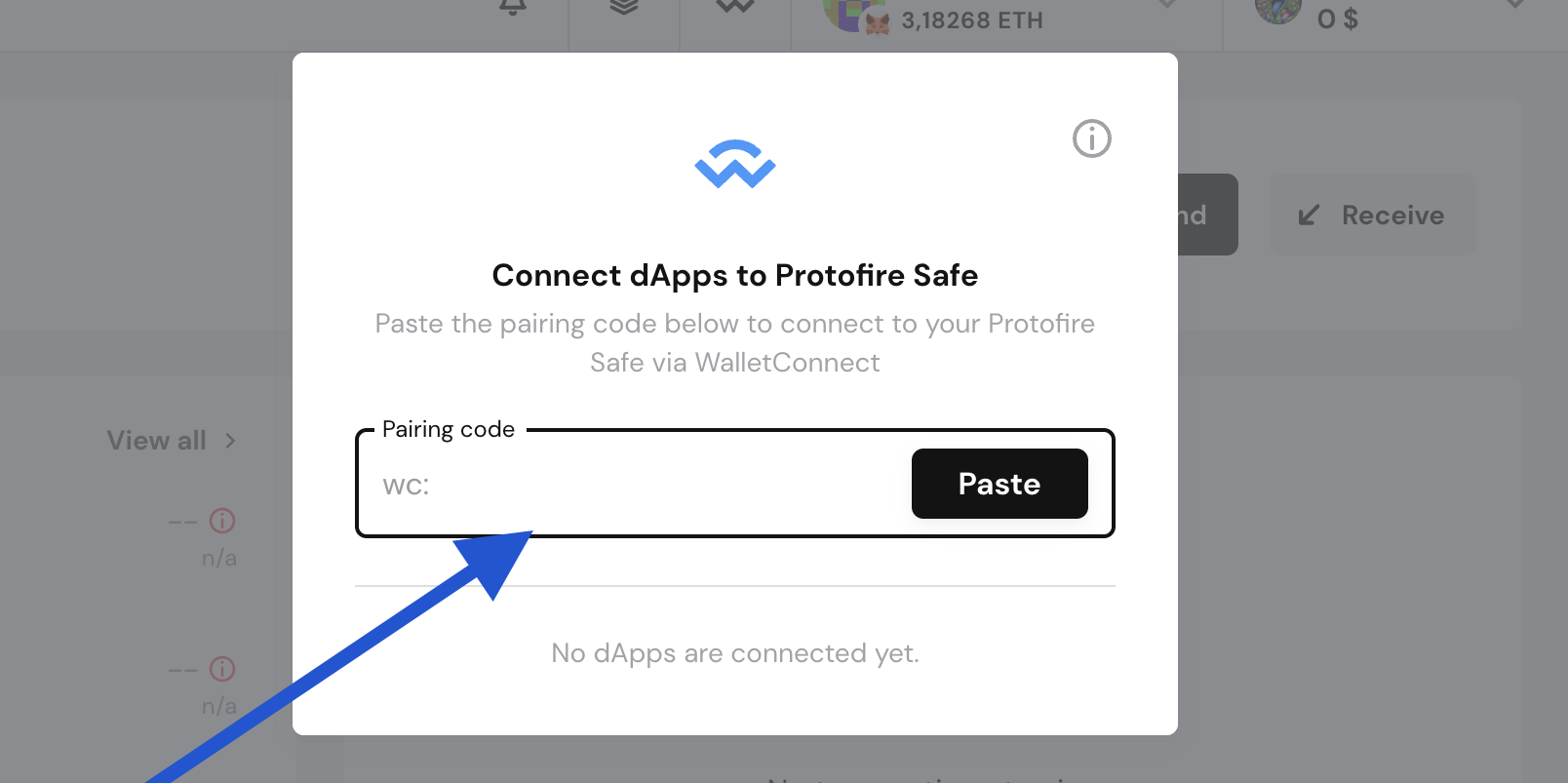
- Copy the WalletConnect URI from the terminal (starts with
wc:...) - Open your Safe in the browser at app.safe.global
- Paste the URI and connect
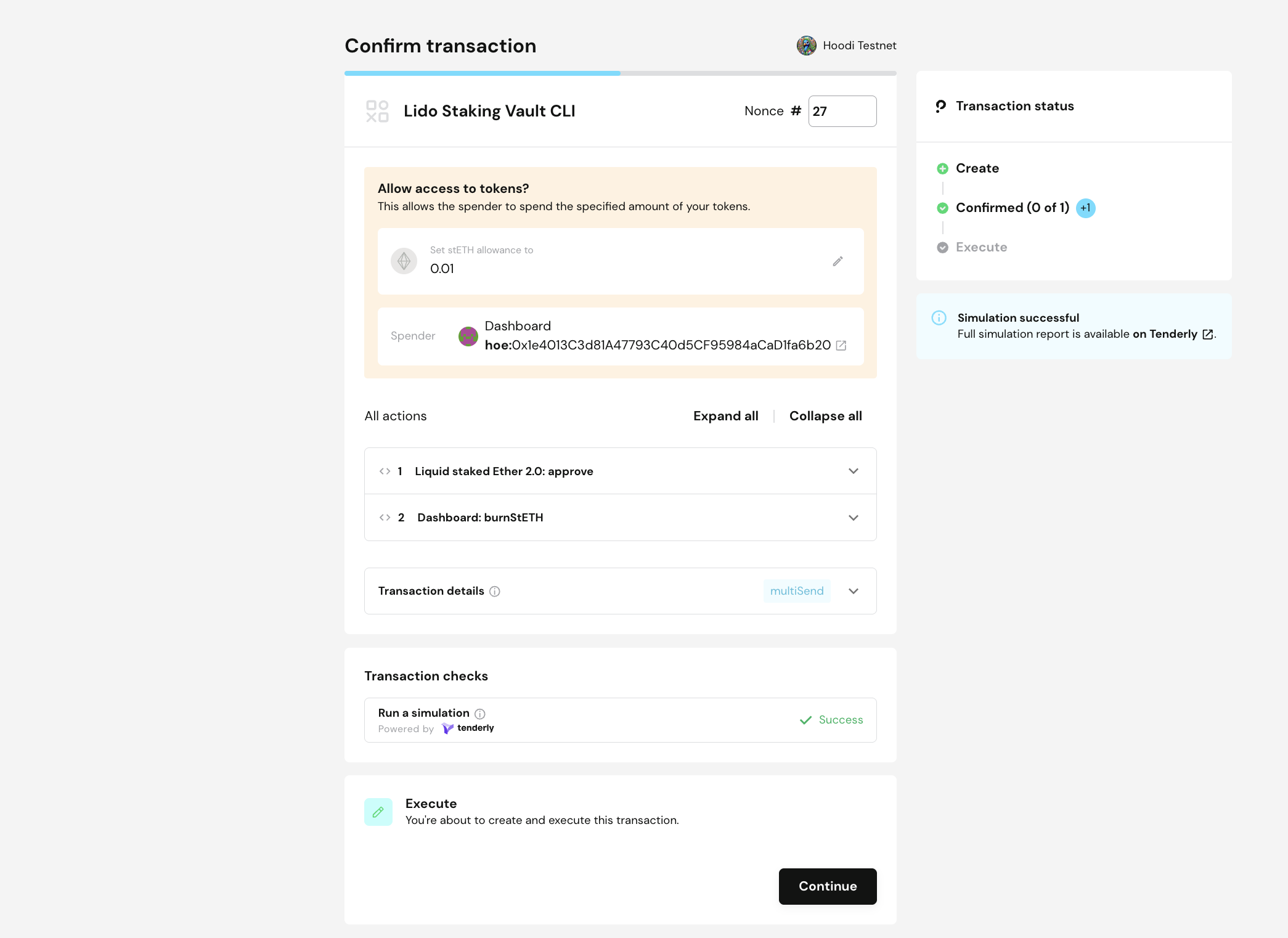
4. Review Transaction in Safe
After CLI prepares the transaction:
- Safe will show transaction details
- Review the transaction carefully:
- To: Contract address
- Value: ETH amount (if any)
- Data: Encoded function call
- Verify the transaction matches your intention
5. Sign Transaction
For threshold 1-of-N:
- Sign and execute immediately
- CLI waits for on-chain confirmation
- Transaction hash is displayed
For threshold 2+ (e.g., 2-of-3, 3-of-5):
- First signer signs the transaction
- Safe creates a pending transaction
- CLI completes and exits immediately after submitting the transaction to Safe (it does not wait for signatures or execution)
- CLI displays Safe transaction hash/nonce
- Other signers must sign separately:
- Open the Safe interface
- Navigate to Transactions → Queue
- Find and sign the pending transaction
- Once threshold is met, any signer can execute
Important: CLI does not wait for all signatures or execution when using multisig. You must monitor the transaction completion in Safe interface.
6. Monitor Execution (Multisig Only)
After CLI exits, for multisig Safe:
- Open Safe interface at app.safe.global
- Navigate to Transactions → Queue
- Wait for other signers to sign
- Execute transaction once threshold is met
- Verify completion in Safe transaction history or block explorer
Command Examples
Vault Operations
# Create vault
yarn start vo w create-vault create --wallet-connect

# Fund vault
yarn start vo w fund 32 --wallet-connect

# Mint tokens
yarn start vo w mint-steth 10 --wallet-connect

# Burn tokens
yarn start vo w burn-steth 5 --wallet-connect
Deposit Operations
# Top up node operator balance
yarn start deposits w top-up-no 2 --wallet-connect

# Predeposit validators
yarn start deposits w predeposit '[{...}]' --wallet-connect

# Prove and activate validator
yarn start deposits w prove-and-activate -i 12345 --wallet-connect
Report Operations
# Submit report
yarn start report w submit --wallet-connect
Security Considerations
Best Practices
✅ DO:
- Use multisig wallets (Gnosis Safe) for production operations
- Verify transaction details carefully before signing
- Ensure CLI is running on a secure, trusted machine
- Keep your
WALLET_CONNECT_PROJECT_IDin version control (it's public) - Verify the network matches your intention
- Review all addresses and amounts before confirming
⚠️ DON'T:
- Share your wallet's private keys
- Sign transactions without reviewing them
Security Features
- Private keys stay in your wallet - CLI never accesses or stores them
- Transaction simulation - CLI simulates before requesting signature
- JSON-RPC only - CLI only sends transaction requests over WalletConnect
- Session-based - Connections are temporary and per-operation
- No key exposure - Unlike
PRIVATE_KEYorACCOUNT_FILEmethods
Troubleshooting
Connection Issues
Problem: No URI shown or connection fails quickly
- Verify
WALLET_CONNECT_PROJECT_IDis set in.env - Check WalletConnect Cloud status
- Ensure network connectivity
- Retry the command
Problem: Connection timeout (after ~180s)
- Wallet may not be reachable
- Re-run the command
- Check if WalletConnect relay is accessible
- Verify firewall/network settings
Problem: QR code not scanning
- Try copying and pasting the URI manually
- Ensure wallet app is up to date
- Check if your wallet supports WalletConnect v2
Wallet Issues
Problem: No accounts found
- Unlock your wallet
- Ensure correct network/account is selected
- Verify network matches
CHAIN_IDin CLI - Check Safe has the correct owners configured
Problem: "No wallet connect client found" during send
- Re-scan and approve the session
- CLI may have cleared the session after an error
- Restart the command
Problem: Transaction rejected in Safe
- Check Safe has sufficient signers online
- Verify transaction details match your intention
- Ensure Safe has necessary roles/permissions for the operation
Gnosis Safe Specific
Problem: CLI exited but transaction not executed
- This is normal behavior for multisig Safe
- CLI exits after first signature is collected
- Open Safe interface to check transaction queue
- Notify other signers to sign the pending transaction
- Execute once threshold is met
Problem: Transaction stuck in queue
- Check if threshold is met in Safe interface
- Any signer can execute once threshold is reached
- Verify no conflicts with other pending transactions
Batch/Advanced Issues
Problem: Batch fails or wallet says "EIP-7702 disabled" (e.g. MetaMask code 5750)
- Some wallets (e.g. MetaMask) implement
wallet_sendCallsvia EIP-7702 and require it to be enabled in wallet settings. If it's disabled, the batch call can fail. - The CLI checks real support at connection time via
wallet_getCapabilities(EIP-5792). If the wallet does not report atomic batch support, or if a batch send fails (e.g. user rejected EIP-7702), the CLI automatically falls back to individualeth_sendTransactioncalls and logs that fallback — no action required. You can also enable EIP-7702 in the wallet if you prefer a single batch transaction.
Problem: Transaction simulation fails
- Check vault has sufficient balance
- Verify account has required roles
- Ensure contract state allows the operation
- Review transaction parameters
Limitations and Notes
Current Limitations
- Session persistence: Not guaranteed between runs; you typically approve per session
- Batch support: Detected via EIP-5792
wallet_getCapabilities; falls back to individual transactions when batch is not supported or fails (e.g. MetaMask with EIP-7702 disabled) - Gnosis Safe multisig: CLI exits after first signature; does not wait for threshold or execution
- No transaction tracking: CLI does not monitor pending Safe transactions after exit
- Network switching: Must be done manually in wallet before connecting
- Unlimited signing time: For multisig, signers can take unlimited time; monitor in Safe interface
Best Practices for Production
- Always use Gnosis Safe for critical operations
- Test first on testnet with same Safe configuration
- Document operations before executing
- Coordinate signers before running CLI commands
- Monitor Safe interface for pending transactions after CLI exits
- Verify execution in Safe transaction history and block explorer
Additional Resources
Getting Help
If you encounter issues:
- Check this troubleshooting section
- Verify your environment configuration
- Review CLI output for specific error messages
- Check wallet/Safe interface for pending transactions
- Consult the project's GitHub issues or documentation